> ## Documentation Index
> Fetch the complete documentation index at: https://docs.deck.co/llms.txt
> Use this file to discover all available pages before exploring further.
# Auth SDK
> Integrate the Auth SDK for seamless user authentication
The Auth SDK is a Deck authored client-side component that your users interact with to connect their external accounts to your product and allow access to their data via the Deck API. It provides a secure interface that handles authentication and multi-factor authentication challenges.
## Prerequisites
* Your Deck API credentials. [Quickstart Guide](/guides/guides/quickstart)
* A webhook endpoint configured and ready to receive webhooks. [Quickstart Guide](/guides/guides/quickstart)
* Source GUIDs for the data sources you want to connect to. [Sources Guide](/guides/guides/sources)
## Flow Diagram
## Integration Guide
Add the Auth SDK script to your application. Supported platforms include React, Next.js, Expo, Vue, Angular, TanStack, and vanilla JavaScript.
```html theme={null}
```
**For React/Next.js:** Dynamically load the script in a `useEffect`:
```javascript theme={null}
useEffect(() => {
const script = document.createElement('script');
script.src = 'https://link.deck.co/link-initialize.js';
script.async = true;
document.body.appendChild(script);
return () => {
document.body.removeChild(script);
};
}, []);
```
See complete examples in our [SDK Quickstart](https://github.com/buildwithdeck/quickstart) repository.
Configure your Deck API credentials as environment variables. These are required to generate SDK tokens and must never be exposed in frontend code. Both keys are available in your [Dashboard](https://dashboard.deck.co).
**.env**
```bash theme={null}
DECK_CLIENT_ID=your_client_id_here
DECK_CLIENT_SECRET=your_secret_here
```
Create a server-side API endpoint to generate SDK tokens. Specify which data sources to make available using `source_ids`.
The `source_ids` parameter controls which data sources appear in the Auth SDK for your users to select. You can specify one or multiple sources. Find source GUIDs in your [Dashboard](https://dashboard.deck.co) or the [Sources guide](/guides/guides/sources).
Link tokens expire after **30 minutes** and are one-time use.
```bash highlight={6} theme={null}
curl -X POST https://live.deck.co/api/v1/link/token/create \
-H "Content-Type: application/json" \
--header 'x-deck-client-id: ' \
--header 'x-deck-secret: ' \
-d '{
"source_ids": ["b1af8246-0339-4833-9119-11da6bd68c13"]
}'
```
**Response:**
```json theme={null}
{
"link_token": "link-production-abc123..."
}
```
Add a button to your page that will launch the Auth SDK:
```html theme={null}
```
Then fetch a SDK token from your backend and initialize the SDK:
```javascript theme={null}
// Fetch link token from your backend
const response = await fetch('/api/create_link_token', {
method: 'POST',
});
const { link_token } = await response.json();
// Initialize Auth SDK
const deck = Deck.create({
token: link_token,
onSuccess({ job_guid }) {
// Send job_guid to your backend to match with webhook
fetch('/api/save_connection', {
method: 'POST',
headers: { 'Content-Type': 'application/json' },
body: JSON.stringify({ job_guid })
});
},
onError({ reason }) {
if (reason === 'InvalidCredentials') {
alert('Invalid credentials. Please try again.');
}
},
onExit() {
console.log('User closed Auth SDK');
},
});
// Open Auth SDK when user clicks "Connect"
document.getElementById('connect-btn').addEventListener('click', () => {
deck.open();
});
```
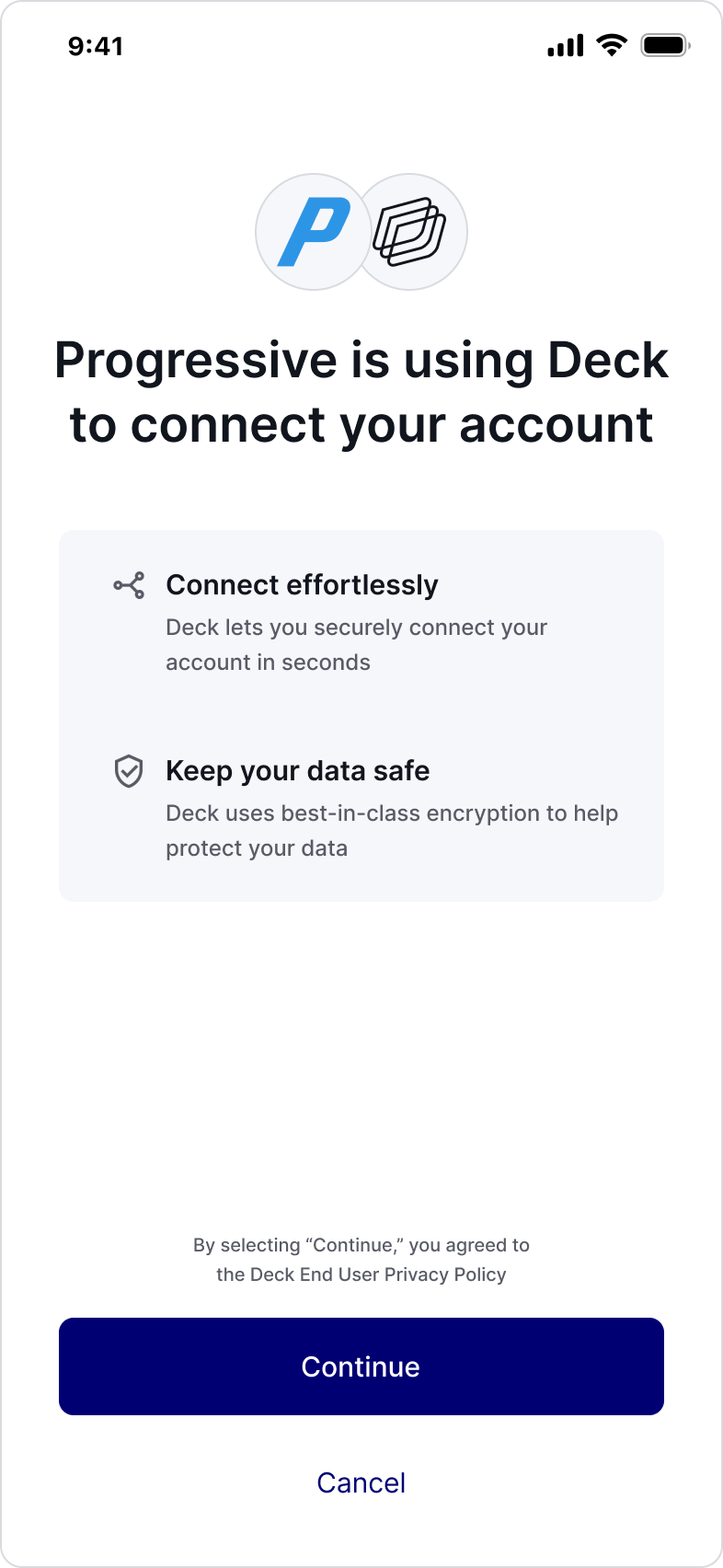
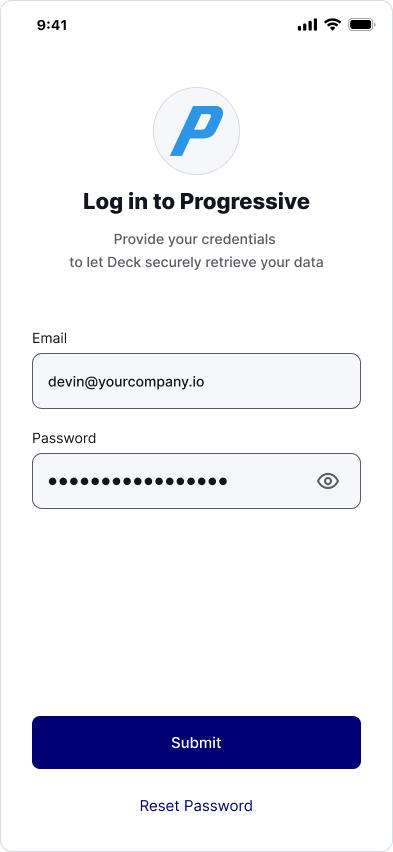
When the user opens Auth SDK, they will:
1. Consent to connect their credentials via Deck to your product.
2. Select their data source from the options you chose to present them when creating the token
3. Enter their credentials for the source they are connecting to.
4. Complete any MFA challenges
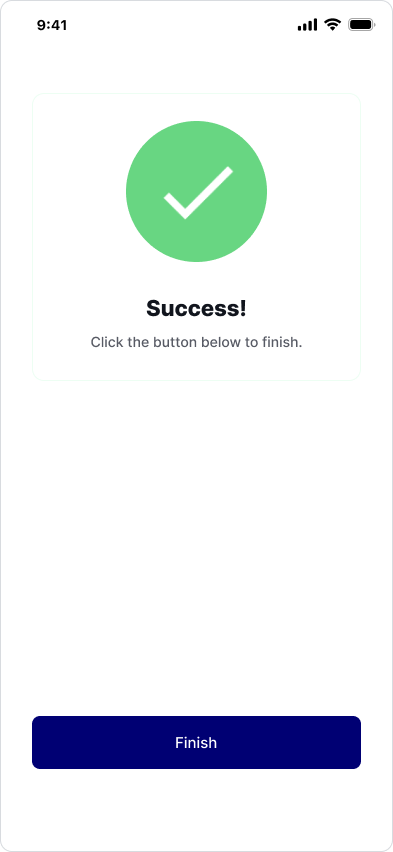
The SDK handles all of this automatically. Your `onSuccess` callback receives the `job_guid`, and your webhook receives both the `access_token` and `job_guid`.
Create a webhook endpoint to receive access tokens after successful authentication. Configure the webhook URL in your [Dashboard](https://dashboard.deck.co).
**Expected Webhook Payload:**
```json highlight={4} theme={null}
{
"job_guid": "b3ab44de-f722-4685-ab3a-b27b369e859b",
"output": {
"access_token": "access-production-34343434-bcbc-34bc-34bc-343434343434"
},
"webhook_type": "Job",
"webhook_code": "EnsureConnection",
"environment": "Production"
}
```
Once you receive the `access_token` via webhook, use it to run jobs on behalf of the user. Jobs can read data (e.g., fetch documents, invoices) or write data (e.g., submit orders, update records).
See the [jobs guide](/guides/guides/jobs) for more information on available jobs and how to run them.
## Customization Options
You can customize the Auth SDK's appearance and behavior by passing additional parameters when creating the SDK token in Step 2. See the complete [API reference](https://docs.deck.co/api-reference-v1/auth-sdk/create-an-sdk-token) for all available options.
Set the SDK's display language:
```json theme={null}
{
"language": "EN"
}
```
**Supported languages:** `EN` (English), `ES` (Spanish), `FR` (French), `PT` (Portuguese), `DE` (German)
Limit sources by their type (e.g., utility, telecom, logistics):
```json theme={null}
{
"source_types": ["utility", "telecom"]
}
```
Launch the SDK in update mode to refresh an existing connection:
```json theme={null}
{
"update": {
"access_token": "access-production-34343434-bcbc-34bc-34bc-343434343434",
"mode": "UpdateCredentials"
}
}
```
Use this when a user needs to update their credentials or re-authenticate due to password changes.
Override the default webhook URL for this session:
```json theme={null}
{
"webhook_url": "https://yourdomain.com/custom-webhook"
}
```
## Browser Support
Deck officially supports the Auth SDK on the following browsers:
| Desktop | Mobile |
| ------------ | ------------------- |
| Chrome 109+ | Android Chrome 121+ |
| Safari 15.6+ | iOS Safari 15.6+ |
| Firefox 115+ | |
| Edge 120+ | |
| Opera 105+ | |
## SDK Reference
### Initialization Parameters
The token is required to launch the Auth modal. Tokens expire after **30 minutes** and are one-time use.
Callback function called when a connection is successfully created.
**Receives:** `{ job_guid: string }`
```javascript theme={null}
onSuccess({ job_guid }) {
// Send job_guid to your backend
fetch('/api/save_connection', {
method: 'POST',
body: JSON.stringify({ job_guid })
});
}
```
Callback function triggered when the SDK encounters an error.
**Receives:** `{ reason: string }`
**Common error reasons:**
* `InvalidCredentials` - Username or password is incorrect
```javascript theme={null}
onError({ reason }) {
if (reason === 'InvalidCredentials') {
showError('Invalid credentials. Please try again.');
}
}
```
Callback function triggered when a user closes or exits the SDK without completing the flow.
```javascript theme={null}
onExit() {
console.log('User closed Auth SDK');
}
```
### SDK Functions
Displays the Auth SDK and starts the authentication flow.
```javascript theme={null}
const deck = Deck.create({ token, onSuccess, onError, onExit });
deck.open();
```
Call this method when the user clicks your "Connect Account" button.
Closes the Auth SDK programmatically and triggers the `onExit()` callback.
```javascript theme={null}
deck.exit();
```
Use this to close the SDK from your code (e.g., after a timeout or user action).